

Desert Online General Trading LLC
Warehouse # 7, 4th Street, Umm Ramool, Dubai, 30183, Dubai
Desert Online General Trading LLC
Warehouse # 7, 4th Street, Umm Ramool, Dubai, 30183, Dubai


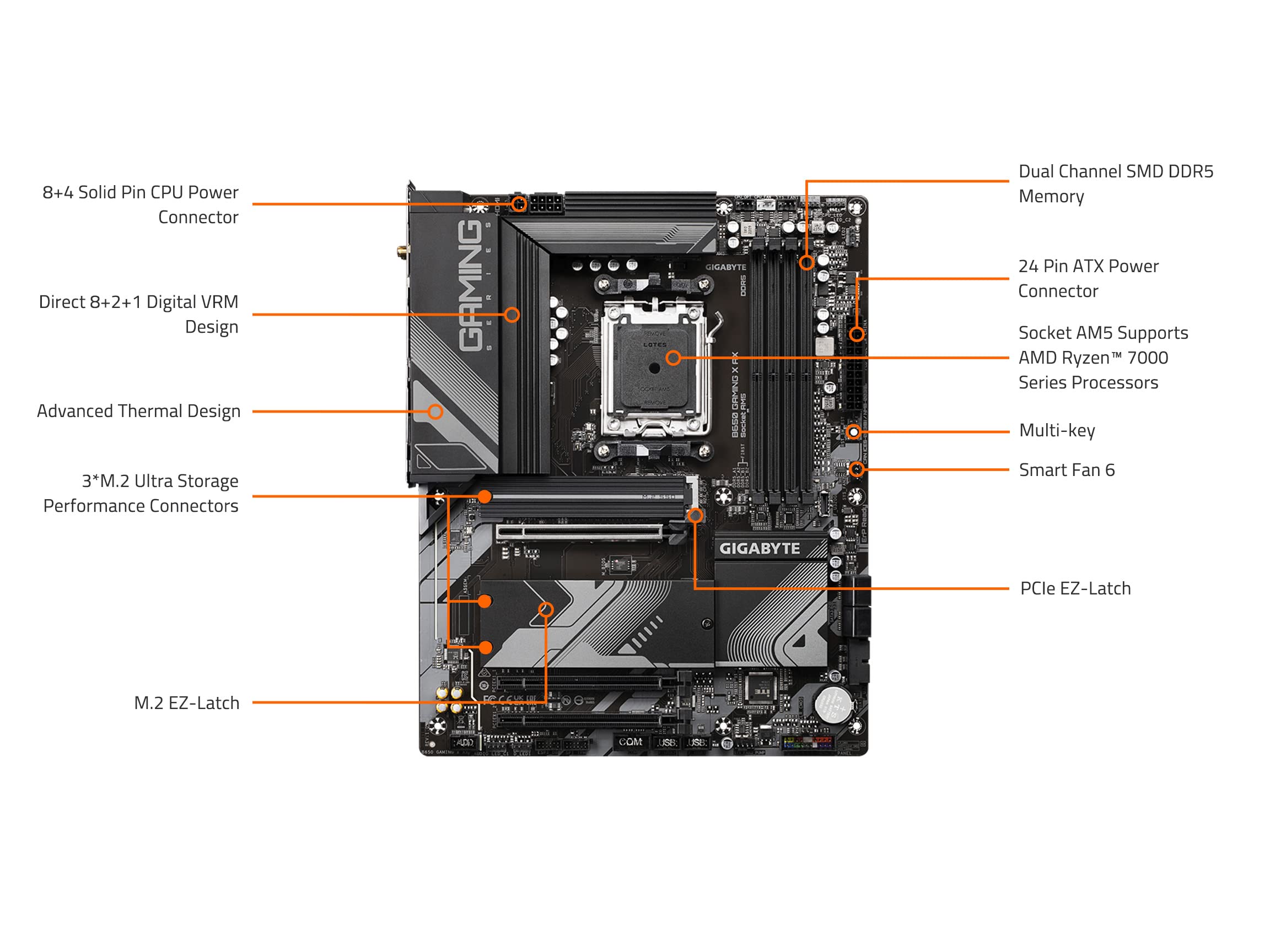
🔥 Power, speed, and connectivity — the ultimate AM5 gaming motherboard!
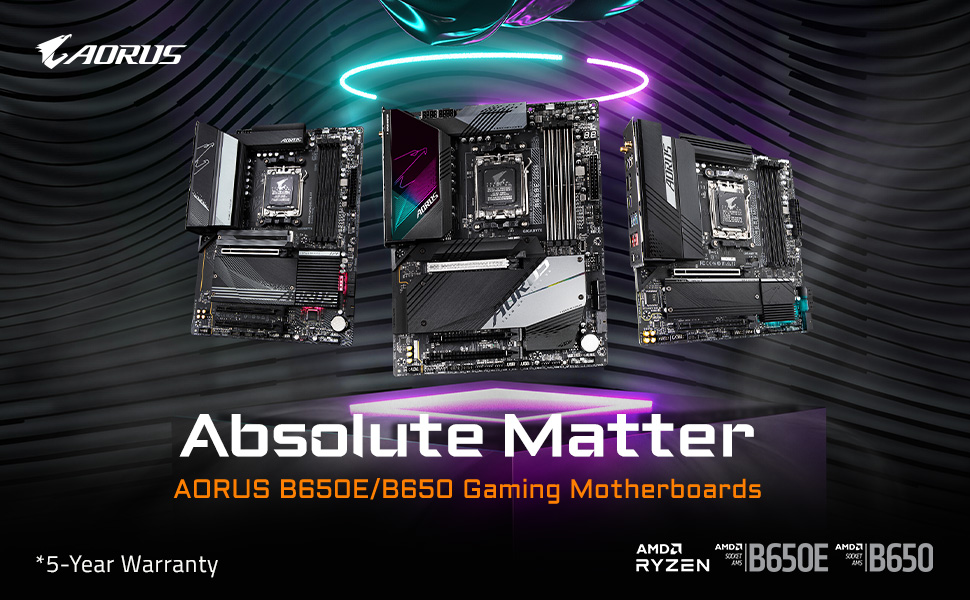
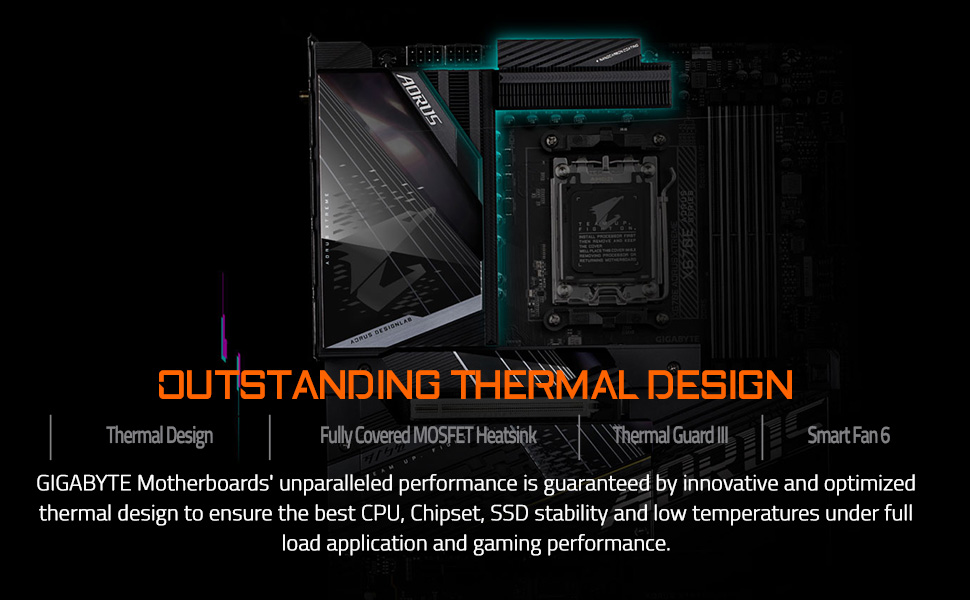
The GIGABYTE B650 Gaming X AX motherboard supports AMD Ryzen 7000 series processors with an AM5 socket, featuring DDR5 memory compatibility, a robust 8+2+1 phase digital VRM for stable power delivery, advanced thermal solutions including M.2 Thermal Guard, triple PCIe 4.0 x4 M.2 slots, USB 3.2 Gen2x2 Type-C, and high-speed networking with 2.5GbE LAN and AMD Wi-Fi 6E. Backed by a 5-year warranty, it’s engineered for gamers and professionals seeking cutting-edge performance and reliability.


| Processor | amd_ryzen_7 |
| RAM | DDR5 |
| Number of USB 2.0 Ports | 4 |
| Brand | GIGABYTE |
| Series | B650 GAMING X AX |
| Item model number | B650 GAMING X AX |
| Item Weight | 4.19 pounds |
| Product Dimensions | 10.62 x 10.55 x 2.67 inches |
| Item Dimensions LxWxH | 10.62 x 10.55 x 2.67 inches |
| Manufacturer | GIGABYTE |
| ASIN | B0BYBHW4SH |
| Date First Available | March 9, 2023 |
J**A
ROCK solid. Gigabyte proves again why I never buy anything else
AM5 boards had a rough introduction, but now that it's later in the Zen 4 cycle it's pretty safe to say the early teething problems are solved. I am delighted by how totally solid and feature-laden this board is, and it proves why I've been buying Gigabyte boards over and over again for decades without regret. The whole thing is just slathered in thoughtful design that makes perfect sense.There's one full PCIe x16 slot, with all channels available. The other slots can fit a full x16 board (like if you wanted to add more video cards or a Tesla card or something), but the lanes will be automatically bifurcated as you do so.There are four memory slots and the board can accommodate up to 128GB of memory. Be aware, however, that Zen 4 memory controllers have some limitations of how fast they can go when you start filling up more memory channels. You can run two slots at 6000+ MT/s, no problem — and it's easy to hop into the BIOS and enable that — but when you populate another two slots... things are going to slow down. Even the massively overpowered 7900-series is likely to only be able to run all 4 slots at 3600MT/s. Maybe 4800 if you're lucky, but don't count on it.There are THREE, count em, THREE, M.2 NVMe slots for storage. The first two, upper ones, are faster and connected to more of the PCIe lanes. The third one, should you choose to use it, is slower, and only has 2 lanes available to it. If you're planning to add a big-ass but inexpensive lower spec SSD, put it in the lower slot and reserve the upper slots for your main disks.The CPU slot comes with a bracket, and it's fine for most standard coolers. If you're using a tower type cooler like a Noctua chromax, you'll have to change out the bracket. It's easy to do, just a few screws on the back of the board.The CPU power plug, like almost every board, is in the annoyingly inconvenient spot in the upper left. Remember to hook it up before you screw the board in, so you don't have to try to jam your hand into the worst possible place in the case. The ATX main board power is along the upper edge and a little easier to get to.Speaking of plugs, this thing is just FESTOONED with front and back panel plugs. I'm an avid user of front panel stuff, and I was very happy to see how generous the front panel plug situation is. Of course, the usual old-school front panel controls—power, reset, lights—are the old school annoying single-Dupont jumper wire type. They're as annoying as ever to hook up, and along the lower edge. However, they are clearly labeled, silkscreened, and even color-coded.About that back panel, though: I don't care about WiFi on a stationary desktop. The Ethernet plug is *right there* on the back panel. But I do want to use the Bluetooth. However, in order to use this board's Bluetooth capabilities, you have to hook up the antenna thing. I'm happy to report that while I didn't really *want* to do this, it was easy to do—just two of those micro coaxial cables—and the antenna even has a magnetic base to keep it from flopping all over the place. The Bluetooth works great, and that's kind of a miracle. Most Bluetooth chips are terrible.Remember how I mentioned the BIOS is easy to set up? It's also incredibly deep. You can get down and dirty, with a level of granularity and setting that is just beautiful. This is, truly, a top-tier overclocker's board. But even if you aren't going to get into that, you want to pop in there and do a couple of things:First, update the BIOS. Usually, it's not worth bothering to do this. 99% of BIOS updates in the world don't fix anything for anyone or are only for specific weird configurations. In this case, it's not true. YOU WANT TO UPDATE. In the AM5 world, BIOS updates come with real, useful, upgrades to performance and stability that everyday users can enjoy, and this board needs the new one. Why? The new one makes it faster, literally just faster and better, when you use DDR5-6000 or more.Second, set the "EXPO 1" profile for your memory. The default is kind of a "safe mode" thing which works, but totally wastes the actual speed of the memory you bought.Third, set Precision Boost Overdrive to "80 Level 2". Unless you bought a CPU cooler upgrade, then set it to "90 Level 2." The first number is the target temp it's going to run, and the second number is how much it will reduce the voltage of your CPU. "2" is pretty much the guaranteed recommended setup.Now, reboot and enjoy your AWESOME new Gigabyte board.
Y**K
Troubleshooting with Ryzen 9700x
I spent at least 8 hours trying to get this thing to boot (POST) with Ryzen 9700x. I managed to do it after many trials and errors. Here are a few tips.- Check your Motherboard's Revision number at the corner of the motherboard before downloading the manual or bios. I got a Rev 1.5.- If you can, update the bios to the latest version with Q-Flash Plus before installing CPU, RAM, and any other components. You can find many tutorials on YouTube on how to use the Q-Flash Plus. For a Ryzen 9000 series CPU (Ryzen 9600x, 9700x, 9900x, 9950x), you need a bios version F30 or higher. I couldn't get the motherboard to POST until I flashed the bios to F30 using a 16 GB USB stick and Q-Flash Plus.- If your motherboard doesn't POST, check the LED debug light on the motherboard. If the "DRAM" red light is on, your motherboard is likely going through memory training. Mine took ~10 minutes with a single 48 GB DDR5 stick, and roughly the same after I added a second stick for a total of 96 GB. You will not see a display output until the memory training is complete.- Check which RAM slots you should use, depending on the number of RAM sticks. For a single stick, the manual recommends slot A2 (the second-closest slot from the CPU).- I first thought my motherboard was defective because RAM training seemed to take forever without any display. However, I now suspect that an outdated BIOS was causing the infinite hang. Everything worked once I successfully updated the bios to a Ryzen 9000-supported version (F30).- Be careful with front panel USB 3.0 port. As someone else has mentioned, it is difficult to see the pins once you install the motherboard inside the case. I had to take out the motherboard to unbend one of the pins I bent while trying to force-push the connector.I'm still giving 5 stars because it works well after troubleshooting. A long memory training time is not a Gigabyte-specific issue, and I'm sure other manufacturers' motherboards will also experience some issues with the Ryzen 9000 series.
Trustpilot
2 months ago
1 month ago