🚀 Own Your Internet Speed, Ditch the Rental Hassle!
The TP-Link TC-W7960 is a DOCSIS 3.0 certified cable modem router combo delivering up to 343Mbps download and 143Mbps upload speeds. It supports 802.11n Wi-Fi up to 300Mbps, eliminating monthly rental fees by combining modem and router functions in one compact device. Compatible with major US cable providers including Xfinity and Spectrum, it comes with a 2-year warranty and 24/7 technical support, making it a cost-effective and reliable choice for professionals seeking fast, stable internet with easy setup.



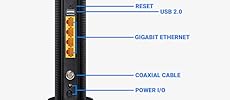


| ASIN | B01EO5A3RQ |
| Best Sellers Rank | #30,714 in Computers & Accessories ( See Top 100 in Computers & Accessories ) #40 in Modem Router Combos |
| Brand | TP-Link |
| Color | Black |
| Customer Reviews | 3.8 3.8 out of 5 stars (2,092) |
| Date First Available | April 23, 2016 |
| Is Discontinued By Manufacturer | No |
| Item Dimensions LxWxH | 8.17 x 5.86 x 2.87 inches |
| Item Weight | 3.2 ounces |
| Item model number | Cable Modem Router |
| Manufacturer | TP-LINK USA |
| Number of USB 2.0 Ports | 2 |
| Operating System | Windows 10/8.1/8/7/Vista/2013/2008, OS X 10.4 or later (Ethernet Connection Only) UNIX and Linux |
| Product Dimensions | 8.17 x 5.86 x 2.87 inches |
| Series | TC-W7960 |
| Wireless Type | 802.11a/b/g/n |
P**H
Product is garbage
I am having problems running Netflix on my Xbox One S with this modem/router combo. I've reset the router/modem, reset my Xbox, tried port forwarding, tried a DMZ, etc. I used a hotspot from my phone and the Xbox works fine with Netflix. I've received no help from the support team after contacting them. I will not buy a TP Link product again. UPDATE: If you have any problems with XBOX or a game console you need to connect it to the Guest Network. TP link tech support was very helpful. Here are the step by step instructions that they provided me that work: After logging in, please follow these steps: 1. Click "Advanced" at the top 2. Click "Wireless 2.4G" on the left 3. Click "Guest Network" on the left 4. Make sure the both "Allow guests to see each other" and "Allow guests to access my local network" are checked 5. Check the box that says "Enable Guest Network" 6. In the "Name (SSID)" field, type the preferred name of your network. We recommend giving it a slightly different name than your main network, so your XBOX can easily identify it. 7. For Security, select "WPA/WPA2-Personal" 8. In the Wireless Password box, type in your current Wi-Fi password 9. Click "Save" and wait a few moments 10. Click the "Reboot" asterisk in the top right to reboot the router and apply the changes.
D**M
Great Router, Easy SetUp, No calling Comcast.
I purchased this as my Xfinity modem/router has been giving me problems for nearly a year. It would work for months without incident, then I'd have days where my connection would drop. It was pretty random, so the few times I called Comcast, they'd reset the router and all would be well for a few weeks. Last week, it started dropping its signal every 10-15 minutes. Now that I work from home, I couldn't take it anymore. Rather than have a tech come out, a friend insisted it wasn't my internet connection but my router. She pointed me in the direction of this router as it's the same router she set up for her 62 year old mother and mom has had zero issues. I was concerned I wouldn't be able to make it work properly, I'm tech savvy in the respect that I can handle SEO an onlne marketing.. but technical issues that run the gamut of hooking things up are not my thing. I'm a plug and play kind of girl (Mac user).. so I'm very accustomed to plugging in things and I'm done. I was worried about the setup process. But, I opened the box, followed the one sheet instructions and BOOM I'm connected. Here's what I did: 1. Opened the box and connected the coax cable from my infinity router into the back of the TP Link Right out of the box - I appreciated how much smaller the unit was in comparison to the large and clunky Xfinity wifi/modem 2. Plugged the power cord in 3. Pressed the small button beneath the power cord to turn the router on. 4. Although my personal computer is a Macbook Air (no ethernet port). My work laptop is a Dell.. so I plugged the ethernet port into that. 5. The one sheet instructions led me to the TPLink site where I logged in (username: admin/password: admin) 6. I waited for all of the lights to light up. (They are not bright.. the lights are no brighter or intrusive than the light on my AppleTv) 7. When I unplugged my ethernet and was wireless, when I tried to go to a web page I was taken to the Xfinity setup page. 8. Entered my Xfinity username and password 9. Xfinity told me I was done and connected. Things got slightly tricky for me when I went back in to change my Wireless name and password. But I quickly realized it made more sense to change the wireless name and password while connected via the ethernet cable. That was it. I'm now surfing the internet wirelessly again with great speed. I live in the city with tons of routers around me and I'm experiencing no issues or slow downs. I was also able to connect my work laptop to the wireless network via a VPN with no issues. If I could set this thing up... anyone can! It took me about 20 minutes.
C**S
Bad reviews for lack of information?
This review is after two years of usage. The install is very straight forward. Instructions are included in the box; very plug n play. As for the user friendly features it has its own 'website' that you can access to limit certain features (like when guests come over how much they can use) along with other crucial information such as DCIM numbers which pathways are open and enabling others. I did have issues with connecting this to my xbox 360 at first but after a couple YouTube videos problem solved. It says very clearly which providers it works with read that. You can also check with the provider if they accept this router. We live in about a 1000 square foot apartment and have never had connectivity issues. Can stream Netflix while watching YouTube on two computers while uploading videos very easily; your mileage may vary depending on your ISP. Looks very good upright, unfortunately it is not really designed to be on its side.
H**N
DO NOT BUY
I have Mediacom with 100Mmps service. This worked great for about two months, no issues. I was ready to write a glowing review and give it 5 stars! Then the issues started. Devices are constantly dropped from the wireless connection. While streaming on a Roku or Firestick, the show will just stop, try to load, then comes up with a message that the connection has been lost. I have to restart the router and reconnect the streaming stick to wireless. This happens at about 12-15 minute intervals, so if you are used to watching TV with commercial breaks maybe you'll do fine with this router and reconnecting your wifi on a regular basis. If you check the TP Link forums for this model you'll find a bunch of other people with the same problem for this model. Same thing on Chromebook, Xbox, tablets and phones. Even when I'm the only one home and the only device connected to the wifi is my phone it will randomly disconnect. Sometimes the router just restarts on it's own. It does fine for wired connections. No issues at all there. But who uses wires anymore? I connected a smart TV, then my work laptop just to test it out and see if the connectivity was only for wireless or the modem. Nope, wired works fine. On the up side, I was able to work from home for an entire day without connectivity issues when I plugged in.
A**R
works great
Trustpilot
1 month ago
2 months ago