Desertcart purchases this item on your behalf and handles shipping, customs, and support to Kenya.
🎨 Elevate your art—wireless precision that keeps up with your imagination!
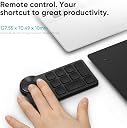
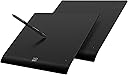
The XPPen Deco Pro LW (Gen 2) is a professional-grade wireless drawing tablet featuring an 11"x7" active area, industry-leading 16,000 levels of pen pressure sensitivity, and Bluetooth 5.0 for dual-device connectivity. Designed with ergonomic comfort and a premium metal finish, it includes a smart stylus with felt nibs and a shortcut remote, compatible with multiple operating systems and top creative software, empowering artists and designers to create anywhere with precision and style.


| ASIN | B0C3R3JVBD |
| Active Surface Area | 11 inches (length) x 7 inches (width) = 77 square inches |
| Best Sellers Rank | 46,695 in Computers & Accessories ( See Top 100 in Computers & Accessories ) 96 in Graphic Tablets |
| Box Contents | X3 Pro Smart Chip Stylus, Ergonomic X-Edge Wrist Rest, customized pen case, Bluetooth 5.0 technology |
| Brand | XP-Pen |
| Brand Name | XP-Pen |
| Colour | Black |
| Compatible Devices | Desktop, Laptop, Smartphone, Tablet |
| Connectivity technology | Bluetooth, USB |
| Customer Reviews | 4.4 out of 5 stars 92 Reviews |
| Display Type | LCD |
| Item Dimensions L x W | 33.3L x 25.8W centimetres |
| Item Highlight | Digital Graphics Pen Tablet with X3 Pro Stylus, Shortcut Remote, Compatible with Windows, macOS, Android, Chromebook, Linux |
| Manufacturer | XPPen |
| Manufacturer Part Number | MT1172B_ACK05 |
| Model Name | Deco Pro LW (Gen 2)+ACK05 |
| Model Number | Deco Pro LW (Gen 2)+ACK05 |
| Model name | Deco Pro LW (Gen 2)+ACK05 |
| Native Resolution | 16K levels per inch |
| Network Connectivity Technology | Bluetooth, USB |
| Number of Items | 1 |
| Number of Packs | 1 |
| Operating System | Android 10.0 (or later, Chrome OS 88 (or later), Windows 7 (or later), iOS (works only with certain apps), macOS 10.10 (or later) |
| Operating system | Android 10.0 (or later, Chrome OS 88 (or later), Windows 7 (or later), iOS (works only with certain apps), macOS 10.10 (or later) Operating system Android 10.0 (or later, Chrome OS 88 (or later), Windows 7 (or later), iOS (works only with certain apps), macOS 10.10 (or later) See more |
| Pressure Sensitivity | 16000 Levels |
| Pressure sensitivity | 16000 Levels |
| Product Features | 16384 Pen Pressure Levels, 60° Tilt Support, Bluetooth v5.0 Connection, Wireless Shortcut Remote |
| Product Warranty | 2 year manufacturer |
| Screen Size | 11 Inches |
| Software Update Supported to Date | unknown |
| Special feature | 16384 Pen Pressure Levels, 60° Tilt Support, Bluetooth v5.0 Connection, Wireless Shortcut Remote |
| Specific Uses For Product | 3D Modelling, Designing, Drawing |
| Target Audience | 3D modeling artists, Designers, Professional illustrators |
| Unit Count | 1.0 count |
P**R
Really pleased with this drawing tablet
I bought this tablet because I wanted something that would give me a bit more control and space when working on digital drawings, and so far I’m really happy with it. The larger drawing area is probably one of the things I noticed most. It gives you room to make more natural movements rather than feeling restricted, especially when working on more detailed sketches. The pen feels comfortable to use and is responsive, which makes drawing feel much more natural than using a mouse. I also really like the wireless option. It makes the desk a lot less cluttered and means I’m not constantly having to think about where the cable is. It’s a small thing, but it makes the whole setup more convenient. The shortcut controls are another useful feature. Once you get them set up to suit the software you use, they can save quite a bit of time and make the workflow feel smoother. There are plenty of features here, but I didn’t find it overly complicated to get started. Build quality feels good, and the tablet doesn’t feel like a cheap or flimsy product. It feels like something that should last, which is important when you’re spending this sort of money on creative equipment. Overall, I’m very pleased with the purchase. It’s made digital drawing more enjoyable and comfortable for me, and I think it offers a good balance of size, performance and useful features. Definitely a worthwhile upgrade if you’re looking for a decent drawing tablet without going straight to the most expensive options.
C**Z
Great pad
Great pad! Does exactly as needed and then some
P**W
High quality
I really like this drawing tablet. I needed a smaller tablet as I wanted to do art sat on my sofa. I have a Wacom Intuos Pro large but it was too large to be comfortable. I wanted a cheaper tablet so took the plunge with Xp-pen and I am glad I did as this feels as good if not better than my Wacom.
M**E
Pros and Cons
Pros. 1. Price: reasonably cheap compared to Wacom Intuos pro. 2. Very pretty design, smooth edge so it doesn't bother wrists when you use. 3. No over heating issues I found so far. 4. Pen is pretty sensitive and I like it. Now, issues I found so far. 1. It doesn't support touch controls meaning, you need to manually rotate the screen. If you have used either Wacom Pro series or display tablets such as Cintiqe or ipad, you might find it incredibly annoying. 1.1. It should support rotation function by using the wheel - however, it doesn't work. Something is wrong. 2. Poor App. Once you do any updates, it just reset all the settings you have saved. Look it up on Reddit. 3. Bluetooth - it is not really a problem but you need to change your Bluetooth setting to Advanced search otherwise it won't come up on the list. If anyone having the same issue on Windows, please go to setting and change your setting to Advanced instead of default. 4. THE REASON IM RETURNING IT.... look at the video. It occasionally just do this. It goes worse when the connection is via Bluetooth, and when I use dual monitors or sidecar between Mac and Ipad. Since this happens on both PC and Macbook I am assuming the tablet or pen has some issues. It is most likely just I'm unlucky and got a faulty device. However, not supporting touch control is bit critical for me so I don't think I can use this model. It would be great alternative option for people who don't need rotation and zoom frequently like me. At the end, it's cheap and sensitivity is as good as other Pro model graphic tablets
J**S
Disappointing, poor performance, poor software
First XPPEN tablet out of the three I have that was disappointing. Lifting the pen even a tiny fraction the pen would become jittery and sometimes stop being detected at all. The drawing experience was a times jittery and laggy, worse than my XPPEN Deco LW which was a third of the price. This was wired because they still, after years have not added proper bluetooth support in Ubuntu. The problem with this is that the drivers will not see the separate controller either. So both the tablet and controller need to be plugged in by usb separately, which means there's not much reason to use it over the keyboard. Waste of money really. There' are better experiences out there for half the price.
R**P
A great purchase with high value to price ratio
**XP-Pen Deco Pro LW Tablet Review** Before diving into the review, I think it’s important to provide some context about my background. I’m a senior 3D artist with over 25 years of experience across feature films, television, games, and virtual reality production. I’ve served as a supervisor on multiple major films, and before entering the entertainment industry, I worked as a manufacturing engineer in Silicon Valley, where I specialized in writing technical documentation and procedures. Additionally, I’ve built my last five computers from scratch, so I’d like to think I know what I’m doing when it comes to tech. **XP-Pen Purchase Date**: 2024/10/01, delivered 2024/10/02 **System Specs**: - Motherboard: ASUS Z790-E WiFi - RAM: 128GB - GPU: RTX 4090 - Total Storage: 20TB - Monitors: 2x 4K displays For most of my career, I’ve relied on tablets from "that other company" (which I won’t name because this isn’t about them). However, I’ve always felt their products were vastly overpriced. I initially had my eye on the Artist Pro 19 (Gen 2), but given the current state of the visual effects and games industries, which are facing a severe downturn, I needed to make a more cost-effective choice. Freelancing has allowed me to make ends meet, but I had to stick with essentials rather than splurging on more expensive tools—even if they might boost my productivity. That’s why I opted for the Deco Pro LW. ### REVIEW **TL;DR** For the price, I’m extremely satisfied with the XP-Pen Deco Pro LW. While I encountered a few issues, they seem more related to my workstation setup than the tablet itself. I would definitely buy this tablet again. If I had the budget, I wouldn’t hesitate to upgrade to the Artist Pro 19 (Gen 2) because the quality-to-price ratio of XP-Pen products is impressive. **Packaging** I was pleasantly surprised by the packaging quality. I expected something lightweight and basic, but the box was sturdy and well-organized, with all the contents securely protected. **SCORE**: 5/5 **Documentation (Quick Guides)** The printed materials are well-done and feel more premium than I expected. While I wish the text in the manual was larger (a personal preference), the content is clear and easy to follow. The step-by-step instructions for setup are generally good, though there are some minor grammatical issues. The biggest problem lies in the English translation during the Bluetooth setup section, which could be clearer. **SCORE**: 4.5/5 **Setup** The Bluetooth setup instructions in the manual suggest pressing the power button for 3 seconds to turn on the tablet and 6 seconds to enter pairing mode. However, I found that holding the button for 3 seconds didn’t turn it on, and holding it for 4.5–5 seconds immediately put it into pairing mode, which contradicts the manual. Initially, I couldn’t get my PC to detect the tablet via Bluetooth. After troubleshooting, I discovered that the "Allow Bluetooth devices to find this PC" setting was disabled on my system. Once enabled, the tablet paired easily. The wireless shortcut remote uses a USB dongle (not Bluetooth), but setup through the configuration app was simple. Since the Bluetooth issue was caused by a setting on my PC, I won’t deduct any points. **SCORE**: 5/5 **Use** Upon first use, I noticed some lag and lack of smoothness when using Bluetooth, particularly in Maya and ZBrush. Using the USB-C cable instead eliminated the issue, so I’ll be spending more time tweaking my system to determine if the problem lies with my hardware or the tablet. Given that this is my first day with the tablet, I plan to further investigate and resolve the Bluetooth performance. **SCORE**: 4.5/5 **Overall**: **SCORE**: 4.9/5 I’m very happy with the Deco Pro LW and excited to explore more of what it can do. Edit 11/3/2024: After using the tablet for some time I have raised the score, and moved the stars from 4 to 5 to better reflect the quality of the product. It is my hope that, in the future, I will be able to get a Artist Pro 19 (Gen 2) based on my experience with this tablet.
C**S
Great Engineering for Productive Drawing
I highly recommend this tablet. It's easy to configure, the pen is ergonomic and steady, and the buttons on the pen are easy to access. 1) Packaging: The packaging of this pen is so professionally done that it's worth mentioning. The pen comes in a solid metal box with nibs. The tablet is well packed. It's a good indication that XPPen takes care of its product. 2) Configuration: I'm using it with a Mac Studio with the Sonoma MacOS. Simply download the driver and install. Bluetooth quickly configures after the tablet charges a bit. Adjusting the tablet area and screen area is straightforward. I just used the automatic adjustment, which gives you the screen size and tablet size. I do not recommend selecting the "mouse" option: It seems to change the pen's range. The pressure adjustment allows for the correct pressure. 3) Use: I'm using it with Adobe Lightroom and Photoshop. This pen draws very steady lines, much better than my previous tablet, the pen of which was too skinny and the buttons too small. The taper on the XPPen makes it far easier to grasp. The buttons are large and easy to select, but do not get in the way of drawing. I am *very* impressed with the steadiness of the pen. There is very little wiggle, creating smooth, accurate lines (my previous pen on a popular tablet was wiggly). The included glove is a very useful accessory: It enables your hand to glide over the tablet. I have found this tablet to be exceedingly productive. I have the 15" version which I recommend. it fits on my small desk area, and the rounded front edge of the tablet is very functionally ergonomic. The XPPen is a nicely engineered product that will improve your drawing experience.
C**T
Good tablet for the Mac with some drawbacks
Out of the box: great packaging, nice pen case. Try it out: on the Mac, without driver installation the pen on the tablet moves the mouse, left click works a little, no right click, basically useless. Driver installation asks for keystroke monitoring permission (twice, denied), and asks for accessibility permission (have to accept otherwise it doesn't work). Each time the software starts it asks for more permissions (denied). Hooked up the tablet with USB-A cable. Pen on tablet works fine and is responsive and feels good, buttons on pen work. Movements are smooth and soundless. Works fine for me as a left-handed person since there are no buttons on the tablet. At times something weird happens where a menu doesn't work or selections don't turn off. Solution is to quit the driver software and restart. Don't leave the driver running if you don't use the tablet, weird menu selections will happen, the driver interferes with some mouse commands. Basically the driver can be buggy and invasive but mostly works fine while using the tablet and I don't see it working when I quit the driver app. I'm not a super user, I didn't try the extra device with buttons and I didn't try any advanced pen sensitivity trials, I didn't try to set any fancy settings. It works fine for the average user drawing and painting digitally with default settings. Overall, OK value for money. Driver software should be in the App Store so you can trust it better.
M**H
Good quality, terrible interface, and issues with Mac Tahoe.
I bought the Deco Pro LW. The build quality is excellent; it feels great to the touch and in use. However, its integration and performance with macOS Tahoe 26.6 are poor, with numerous glitches. The wireless shortcut remote is a disaster; when configuring it in Photoshop, the "M" key freezes the program's interface. I definitely do not recommend it for Mac users, especially given the configuration software, which is extremely limited and basic. I previously used Wacom—which has excellent Mac integration—so I can make a direct comparison. I noticed on their website that they only release one update a year, suggesting they aren't paying enough attention to their software interfaces. Once they expand the configuration options and fix the many bugs, it will be just as good as a Wacom.
E**R
Lame Quality, Terrible Support; This is a Lemon
PRO: Nice looking, kinda sweet how the corner guides light up when the pen engages, feels good in your hands. CON: The actual component quality is Not There. Customer support SUCKS. And frankly, those two things are dealbreakers. Miserable morning trying, and failing, to get this junk to work. I bought this to replace a nine year old Intuos 4 that was looking a little beaten down. I thought the competition would’ve caught up to Wacom by now, but nope. The Deco Pro LW Gen 2 arrived pretty much dead in the box. Despite the drivers claiming they worked on OS X 10.13 (stuck there for work reasons), they’re squirrelly as heck, the installation walkthrough is confusing, and the manual is missing directions. Like you’ll just be staring at the screen telling you to “Connect the tablet” as you plug & unplug and plug and unplug and... You get the idea. I was never able to get it either paired to Bluetooth or even stable via the provided USB cable. Even connected by wire the cursor would just spastically herk & jerk all over simply hovering the pen without moving over the tablet; it’s completely useless clicking anything (see video). I was on XP-PEN’s tech support chat for almost an hour when the tech guy just gave up and disconnected me and then blocked my IP so I couldn’t restart the chat! When I tried on another computer in the house he disconnected and blocked me again. Ugh. Do any of these clowns get customer service training? Not that he was much help since he seemed to be obssesed with determining whether I was near a magnetic source that would cause interference. Listen, I’m not working next to a freaking magnet. And my Wacom tablet semed to not have a problem for just shy of a decade, so I don’t know what he’s on about other than trying to put the blame for the XP-PEN tablet not actually working on me. So, is the tablet bad? The pen? The Bluetooth chip? All of ‘em? Who knows. They offered to send me another pen... in a week or two. C’mon man, I can get an entire replacement from Amazon in a day. Clearly trying to keep your customers isn’t a priority. You can’tjust throw one in the mail today? But then, why would I replace this? I’ve been on Wacom for damn near twenty years (Intuos 3 & 4) and they’re just plug & play. The Deco Pro is NOT. And I’m suspicious that even if I got the thing working it’d drop signal again down the road when I can’t return it. So yeah, I’d avoid this one. Yes it looks great, yes it’s the Right Price. But no, it’s not quality equipment. They clearly have component issues. If you go to the r/XPpen sub-Reddit you’ll see lots of people with installation problems. And you gotta ask yourself if you want to Get To Work or waste time trying to figure out why XP-PEN tech support won’t take your call?
Trustpilot
3 weeks ago
1 month ago