🚀 Elevate your display game with flawless 4K clarity and unbreakable connections!
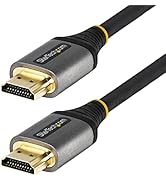
The StarTech 6ft Mini DisplayPort to DisplayPort 1.2 cable delivers professional-grade 4K x 2K UHD video at 60Hz with 21.6 Gbps bandwidth. Featuring gold-plated latching connectors, durable construction, and advanced EMI shielding, it ensures reliable, high-quality audio/video transmission. Compatible with Mac, PC, and Surface devices, this cable supports multi-stream transport and is backed by a lifetime warranty—perfect for demanding office, creative, and home setups.


| ASIN | B002XVYZ82 |
| Best Sellers Rank | #46 in DVI Cables |
| Brand | StarTech.com |
| Brand Name | StarTech.com |
| Cable Type | Display Port |
| Color | black |
| Compatible Devices | Laptop, Monitor |
| Connector Gender | Male-to-Male |
| Connector Type | DisplayPort/Mini DisplayPort |
| Customer Package Type | 1-Pack |
| Customer Reviews | 4.5 out of 5 stars 2,675 Reviews |
| Data Transfer Rate | 21.6 Gigabits Per Second |
| Frequency | 60 Hz |
| Gauge | 32.0 |
| Global Trade Identification Number | 00065030837019 |
| Included Components | displayport |
| Indoor Outdoor Usage | Indoor |
| Item Shape | Round |
| Item Type Name | A/V Cable |
| Item Weight | 2.4 ounces |
| Manufacturer | StarTech.com |
| Maximum Current | 1 Amps |
| Model | MDP2DPMM6 |
| Model Name | MDP2DPMM6 |
| Number of Items | 1 |
| Number of Pins | 20 |
| Other Special Features of the Product | High Speed |
| Outer Material | Plastic |
| Recommended Uses For Product | Connecting electronic devices, Extending signal transmission range |
| Special Feature | High Speed |
| Specification Met | Dp 1.1 |
| UPC | 065030837019 |
| Unit Count | 1.0 Count |
| Warranty Description | Lifetime |
J**B
Macbook Pro with Dell U2713HM
I use this monitor with a Dell laptop at work connected by a DVI-D dual-link cable at its maximum resolution 2560x1440, and I wanted to connect my MacBook Pro 15" Retina to it simultaneously. So I bought this cable and hooked it up, and nothing. Not any indication on the monitor or the Macbook that there was any communication between them at all. Absolutely black and still. After a lot of completely unproductive web searching and then a good amount of trial and error I finally got it to work for both, and now can easily switch between computers at the maximum resolution. So the cable works fine. One thing I was initially worried about was that the cable's plug into the Thunderbolt/Mini-DisplayPort port on the Macbook was suspiciously loose, and I initially thought that might be because the cable is cheap as was suggested by another reviewer, but that is not the case as part of my trial and error work involved plugging in Apple's own Thunderbolt to DVI-D dual link adapter and that is just as suspiciously loose and it is certainly not cheap. The bottom line, I believe, is this Dell monitor is really flakey. It goes to sleep and won't wake up. Sometimes you have to keep turning things off and on, rebooting, docking and undocking. It's pretty pathetic. Fortunately once things work they work well for long stretches of time. In my case the monitor finally recognized a MacBook was attached only after I also used a USB cable between the monitor and the MacBook. After that it has worked perfected, hot plugging it in and out of the MacBook without a hitch, even though the USB cable is no longer attached. Go figure. The monitor still occasionally loses the connection to the Dell laptop however, and then it is that awful process I described before. But this cable works perfectly fine for me at maximum resolution between a MacBook Thunderbolt port and the full sized DisplayPort port of the Dell U2713HM after using a USB connection to wake it up somehow.
S**D
Works Flawlessly!
I pretty much have the worst luck in the world. So I was really happy when I plugged this in and it worked perfectly right away. Long story short, I bought a Mac (mini), decided I wanted a decent screen so I got an LG 29UM55 which is a 21:9 monitor. I plugged in with the Thunderbolt to HDMI port. No good. End up with a 16:9 screen with "skinny screen" bars on the sides. Full mode just stretched the 16:9 to fill and of course, that looked terrible. Read up and found out HDMI isn't capable of carrying 21:9 from a Mac, so I needed to use a displayport adapter. I'll be honest, I didn't know all the technical info on the cables and pins and whatever else goes on in these otherwise plain black wires. Decided I'd just try it despite some buyers experiencing monitor wake issues. Glad I just went with it. Plugged in and I'm now getting full 21:9 resolution. It's been 2 months and I haven't had any monitor wake issues, so I suspect quality control may have been the reason some other buyers were having this issue. Anyway, if you have a Mac, YES this works directly into the Thunderbolt port. It's a no brainer really, if you need this, just order it. Don't even bother with resolution apps, they won't help with getting the 21:9 over to your monitor. It's just too bad they don't sell these in physical stores. I'd have paid twice the price if I didn't need to wait for it to ship.
C**K
a tad short, but ideal for connecting ATI cards to dell monitors
4.5 stars if I could. A much better alternative to DVI for monitors/cards that support it I've got the XFX radeon 7970 in my mac pro, and recently got a 3rd monitor. I got some mini display port (MDP) to DVI adapters not realizing they have to be the more expensive 'active' type to work with the ati card in a >2 monitor configuration, and not realizing that the simple solution of this cord existed. not only is this a much more economical way to connect display port monitors (such as contemporary dell monitors) to a MDP card, and not only does it support 3 monitor configuration for ATI cards, but when the monitor is turned off or switched to another input, the card/computer knows (unlike with VGA/DVI, or HDMI), and remaps the desktop layout. Without having to physically unplug anything; this saves video card memory (driving fewer monitors when fewer are being used), avoids having an invisible screen of desktop area when i'm using another input on one of the monitors (e.g. for analogue video output on a blackmagic card), and even allows my wacom tablet to automatically remap to the change in desktop area. All that would presumably be true for any display port to MDP cable. As for the Startech 6-footer in particular: To call this 6 feet is literally a stretch, (5'11.5" from gold tip to gold tip of both that i bought), but it's sufficient to get from my tower under one side of my desk to a monitor sitting on top of the other. It lacks the cylindrical magnets that many monitor cables have, but seems to do fine without them. they feel reasonably secure plugging in at each end, and build quality seems to be good. been using them about 2 weeks now, will update if any issues arise.
S**N
1440p 165hz works good
Connected this from my laptop to my Samsung g5 and it works flawlessly.
G**S
the right cable
This is a) the least expensive and b) one of the most solid adapters I've had to purchase. If you have a MacBook with mini DisplayPort and you want to attach it to one of the new Dell Ultrasharps, THIS is the product you need to pull maximum resolution out of your Dell. HDMI and DVI won't do it. Why a lesser-throughput technology costs three times as much is beyond me. But this little cable works and you don't have to get both a cable and adapter separately.
N**M
Great quality
Perfect clear 4K 60Hz signal on my monitors. Works great.
A**S
Works really well with my Alienware m17x R3
I bought this to connect my m17x R3 to my ASUS 27" monitor. I wanted to free up an HDMI port for an Apple TV, and this cable does the trick nicely. Warning to m17x R3 users: if you use the HDMI input functionality on the notebook, this can cause false negatives outputting to the display via this DisplayPort cable. I did some basic experiments and it looks to be a software configuration / plug-n-play conflict, and so long as you don't try to do both simultaneously all is well. (Note that I know concurrent HDMI input and DisplayPort output isn't supported by the graphics in the platform. The issue here is that it's a persistent loss of DisplayPort output even after you'd disconnected and stopped attempting to use the HDMI input.) Anyhow, it works great and glad I got this for my notebook.
A**B
To potential buyers using it for NEC PA271W-BK-SV to MacBook Pro connection
My review is based on the following setup: 1. Late 2010 MacBook Pro 17" i7 2. NEC MultiSync PA27W-BK-SV Use Case: MacBook in clamshell mode running the NEC panel in full native resolution 2560x1440 at 60 Hz. Keyboard and Mouse are Bluetooth connected. I received the Startech cable and it basically works by providing a solid picture. However, it does not functionally work based on my Use Case because it is buggy when putting the NEC monitor into sleep mode when the MacBook Pro goes into a sleep state. Here's what happens and I am not sure if this is normal or if it's the cable, or monitor, or other? When I put the MacBook Pro into sleep mode, the NEC panel DOES go to sleep however I cannot power off the NEC by simply pressing its power button (i.e. it gets stuck in the "standby" mode). Additionally, the NEC does not awaken out of its sleep mode when the Macbook Pro awakens -- the panel remains in sleep mode. What I did find is that once I unplug the DisplayPort cable from the Macbook the NEC panel immediately becomes "unstuck" from panel sleep mode and powers off by itself. So after trial and error, here is the work-around sequence that I am using until NEC verifies/validates the correct Mini DisplayPort-to-DisplayPort cable. Objective 1: Put both the NEC panel and MacBook Pro to sleep. 1. Activate sleep mode for the MacBook Pro. 2. Quickly unplug the Startech Mini DisplayPort to DisplayPort cable from the MacBook Pro before the laptop has fully entered its sleep state. 3. Both the NEC panel and the MacBook Pro should be asleep. At this time, you may completely power off the NEC panel by pressing its power button. Objective 2: Awaken the MacBook Pro from sleep and power up the NEC panel. 1. Connect the Startech DisplayPort cable. 2. Power on the NEC panel. 3. Awaken the MacBook Pro out of its sleep mode. I do so by clicking my Bluetooth mouse and/or by pressing a key on my Bluetooth keyboard. 4. The display signal from the MacBook Pro should now correctly activate the Mac's desktop display on the NEC panel. In the end, the cable works but you need to follow some steps in order for your NEC panel and MacBook Pro to go into sleep mode. I hope this helps potential buyers in this situation.
Trustpilot
1 month ago
1 week ago